Wireless VR Streaming in 2026: Cutting Latency in Quest and PCVR Without Chasing Raw Speed
Wireless VR streaming has matured significantly by 2026, yet many users still assume that higher Wi-Fi speeds automatically mean smoother gameplay. In reality, low latency in Quest and PCVR setups depends far more on network stability, encoding behaviour, router configuration and interference control than on headline throughput numbers. A 2.4 Gbps link means little if your signal fluctuates, buffers spike or your router struggles with real-time packet handling. This guide explains what genuinely reduces delay in wireless VR, based on current hardware standards and real-world configurations.
Why “Speed” Is Not the Main Bottleneck in Wireless VR
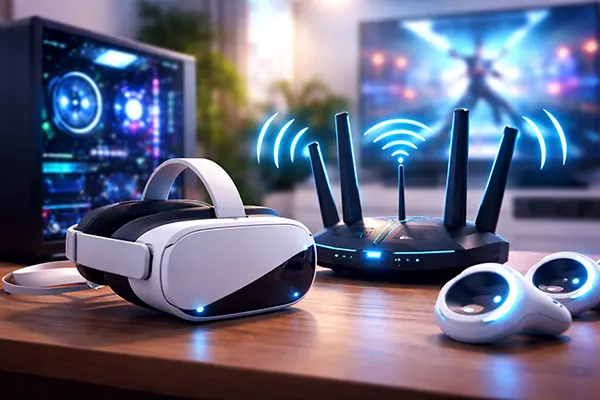
Modern headsets such as Meta Quest 3 and Quest 3S can stream PCVR content over Wi-Fi 6 or Wi-Fi 6E at bitrates typically ranging between 100 and 200 Mbps when using Air Link or Virtual Desktop. Even Wi-Fi 5 (802.11ac) can theoretically handle this throughput. The issue is rarely insufficient bandwidth; instead, it is latency consistency and packet delivery timing that define user experience.
Latency in wireless VR is multi-layered. There is encoding latency on the PC’s GPU, network transmission latency, decoding latency on the headset and display persistence. A spike in any of these stages causes visible stutter. A network running at 800 Mbps with unstable frame pacing will feel worse than a stable 200 Mbps link with predictable delivery intervals.
In practice, VR streaming depends on low jitter rather than maximum throughput. Jitter refers to variations in packet arrival time. Even small fluctuations can introduce micro-stutters or reprojection artefacts. This is why a clean 5 GHz or 6 GHz environment often performs better than a congested network advertising higher theoretical speeds.
Understanding Latency, Jitter and Frame Timing
End-to-end motion-to-photon latency in a well-optimised wireless PCVR setup in 2026 typically ranges between 30 and 45 milliseconds. Anything consistently above 50 ms increases the risk of discomfort during fast head movement. Reducing this number requires balancing encoder settings, GPU headroom and network behaviour rather than simply increasing bitrate.
Frame timing consistency matters more than raw delay figures. If frames arrive at evenly spaced intervals, even 40 ms can feel smooth. However, spikes to 70–80 ms, even briefly, create visible disruption. Router CPU performance, Quality of Service misconfiguration and background traffic can all cause such spikes.
Another overlooked factor is bufferbloat. When routers queue packets excessively under load, latency increases dramatically. In VR streaming, large queues destroy responsiveness. Enabling Smart Queue Management (SQM) on supported routers, or choosing firmware with active queue management, often reduces latency more effectively than upgrading to a faster Wi-Fi standard.
Optimising Your Wi-Fi Environment for Quest and PCVR
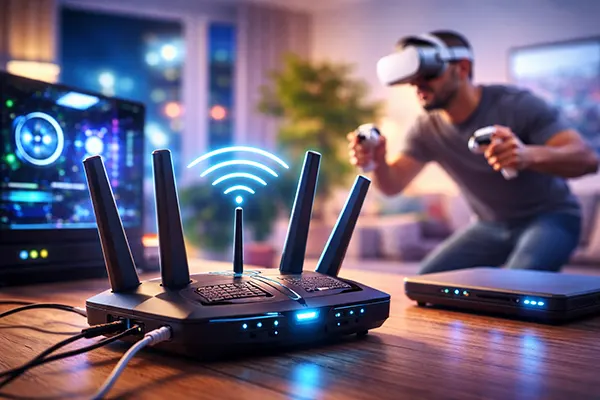
By 2026, Wi-Fi 6E and early Wi-Fi 7 routers are widely available, but the best results still depend on correct deployment. A dedicated router connected directly to the gaming PC via Ethernet remains the most stable configuration. The headset should connect exclusively to this router, ideally in the same room with clear line-of-sight.
The 6 GHz band, available on Wi-Fi 6E devices, offers reduced interference compared to 5 GHz. However, it has shorter range and weaker wall penetration. For VR, this limitation is often beneficial: fewer neighbouring networks operate in 6 GHz, resulting in lower contention and improved stability.
Channel width selection also matters. While 160 MHz channels promise higher throughput, they are more susceptible to interference. In dense urban environments, 80 MHz channels frequently provide more stable performance. Stability, again, outweighs peak data rate.
Router Placement and Configuration in 2026
Position the router at head height, unobstructed, and within 2–3 metres of your play area. Avoid placing it behind a television, inside cabinets or near microwave ovens. Even reflective surfaces can slightly degrade signal consistency at higher frequencies.
Disable unnecessary features such as legacy 2.4 GHz compatibility on the dedicated VR network. Separate SSIDs for 5 GHz or 6 GHz bands prevent band steering delays. Manual channel selection, based on a Wi-Fi analyser scan, typically yields better results than automatic mode in crowded environments.
Ensure your PC connects via wired Gigabit or 2.5 Gigabit Ethernet. A wireless link between PC and router adds extra latency and variability. In 2026, most mid-range motherboards include 2.5 GbE as standard, and using it eliminates one potential bottleneck entirely.
Encoding, Bitrate and GPU Considerations
Wireless VR streaming relies heavily on hardware video encoding. NVIDIA’s NVENC (RTX 20-series and newer) and AMD’s updated AMF encoders in RDNA2 and RDNA3 GPUs have improved efficiency, but configuration still matters. Higher bitrate increases image clarity yet also raises network load and decoding demand.
Dynamic bitrate features in Air Link and Virtual Desktop adapt to network conditions. However, setting an unrealistically high fixed bitrate can cause instability if your router or environment cannot sustain it. In many real-world setups, 120–150 Mbps provides a better balance than pushing beyond 200 Mbps.
Encoding resolution scaling also influences latency. Supersampling on the PC improves image sharpness but increases GPU load and encoding time. If the GPU approaches 95–100% utilisation, encoding latency rises. Maintaining performance headroom ensures the encoder processes frames without delay.
Balancing Image Quality and Responsiveness
In competitive or fast-paced titles, reducing bitrate slightly and prioritising stable frame timing produces smoother results than maximising visual fidelity. Motion clarity is more sensitive to latency spikes than to minor compression artefacts.
Using HEVC (H.265) remains common in 2026 for better compression efficiency compared to H.264, though AV1 support is expanding on newer GPUs and software builds. AV1 can improve visual quality at lower bitrates, but only when both GPU and headset firmware fully support low-latency encoding modes.
Finally, monitor real-time statistics. Tools within Virtual Desktop and Oculus Debug Tool allow you to track network latency, encoding delay and dropped frames. Instead of assuming the problem is “slow Wi-Fi”, measure which stage introduces delay and adjust systematically. In wireless VR, precision tuning consistently outperforms raw speed upgrades.